
In this article, we will go through the Work schedule in Winner Bizz through these different sections:
- Work list
- Work schedule
- Change the display
- Display settings
Note: Some of these features are only available from Winner Bizz version 12.0i.
Select Work > Work schedule.
Work list
On the left of the screen, a list with all the work events that need to be planned. You can double click to plan the work or drag and drop it to the calendar on the right of the screen. Either way will open the Work properties dialog.
Work schedule
The right of the screen displays the Work schedule. You can separate it in another window by clicking on this icon, which allow you to have a window with the list of your work event and in another window the calendar view.
Note: when mousing over one of the work event is the calendar view, an overview is displayed.
Change the display mode
You can adapt your work schedule and chose to display the work event by alternatives, worker overview, or choose to display a global overview.
In addition, you can also choose to display the calendar view per year, month, week or day.
Display settings
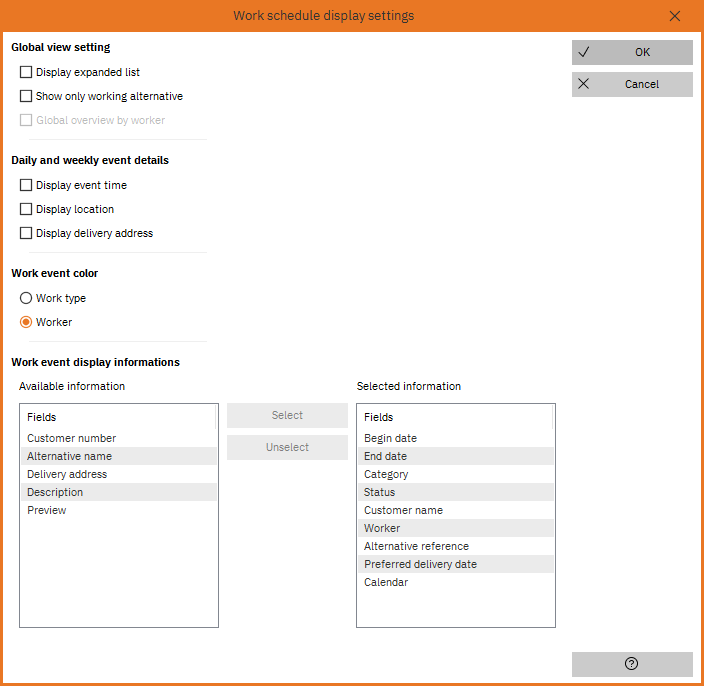
Users can customise the work schedule even more with the Work schedule display settings.
The Work event display information section at the bottom of the dialog allow users to choose what will be shown when mousing over an event in the Work schedule.
Comments
0 comments
Article is closed for comments.