
This article explains:
- How to access the Financial control function
- Invoices and payments control lists
- Display options and validation function
Note: for more information about invoicing extract in the context of a tax audit, please consult Invoicing extract for Tax Audit.
Access the Financial control function
To access the tracks of the invoices and payments modification, the user needs to be granted with the user role Financial control. The Financial control module must be activated in the Workflow settings, under the Financial section.
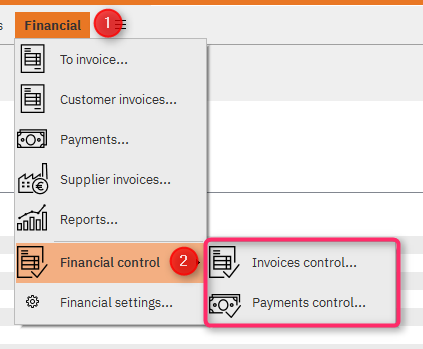
Select Financial > Financial control > Invoices control or Payments control.
Invoices and payments control lists
All tracks of changes regarding payments and invoices will create an entry in the Financial control lists.
The invoices control list displays all the changes and operations done regarding invoices, as well as the corresponding information: invoice number date and type, payment method, invoice amount, user responsible and operation.
When the invoice type is Invoice on item lines, it is possible de display the item lines by clicking Invoice items.
The payments control list displays all the changes and operations done in relation to payments, as well as the corresponding information: payment number date and type, payment method, amount and currency, user responsible and operation.
Display options and validate function
- The search function allows you to filter your payments or invoices lists per company, invoice number and date, invoice type and payment method.
- The data of these lists can be exported as a .csv file with the export icon.
- Expand the column of the list.
- The user with the Financial control role is able to Validate the entries of the list. Clicking the validate button will check that the information in the database is correct. If this is not the case, an error message will appear. If an error message appears, please contact the support service.
Related articles
Comments
0 comments
Article is closed for comments.