
In Winner Bizz, users can assign roles to other users, provided they have the necessary All rights permissions. This article explains how to define which role or roles should be assigned to a user. This is an important step, since the roles will define which lists and functions the user will be allowed to use.
Users first need to open the User edit screen.
- Go to Other options > Users to open the dialogue.
Note: All existing users are listed here. New users can also be registered from here. - Click Edit to open a User edit window.
- Select User's roles tab.
- Please click Assign to open the list of available user roles.
There are pre-existing default roles that users can select. Users can now assign one or more roles depending on the other user’s job.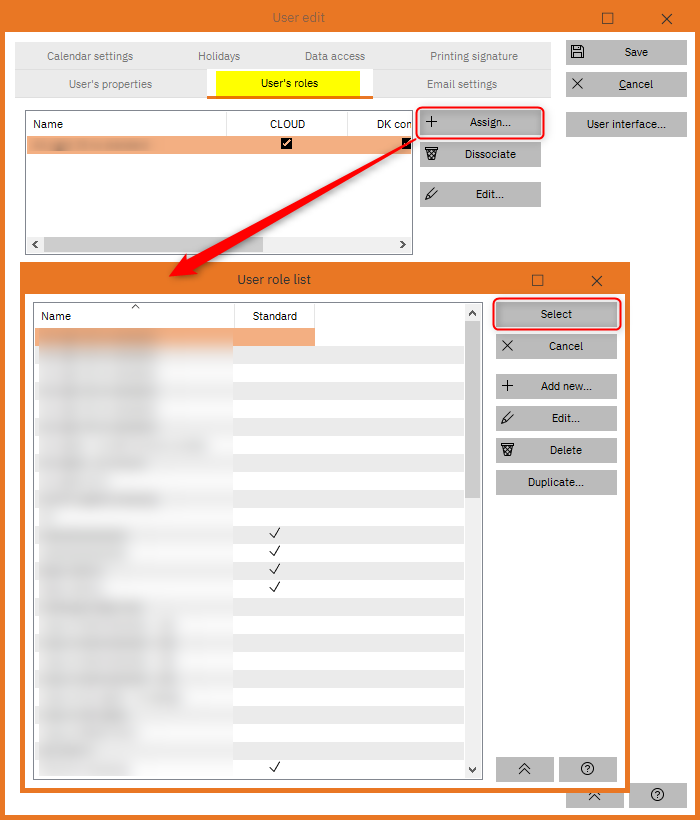
- Select the role that should be assigned to the other user and confirm by clicking Select.
If the user only has a single company registered in Winner Bizz, the assigned user role will automatically be activated for this company. If there is more than one company available in Winner Bizz, the user must define which company the assigned user role shall be activated. See the example below: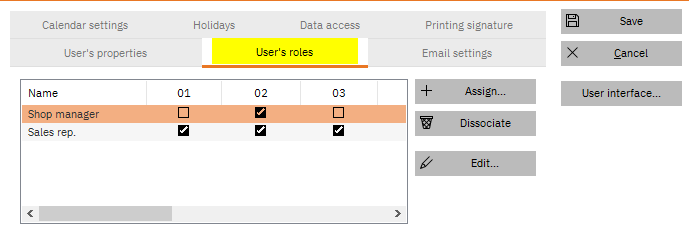
Note: Once the user has registered all users in Winner Bizz and assigned the user roles, you should log out of Winner Bizz administrator account admin and log in with your personal user account to have access to the full rights and permissions.
Comments
0 comments
Article is closed for comments.